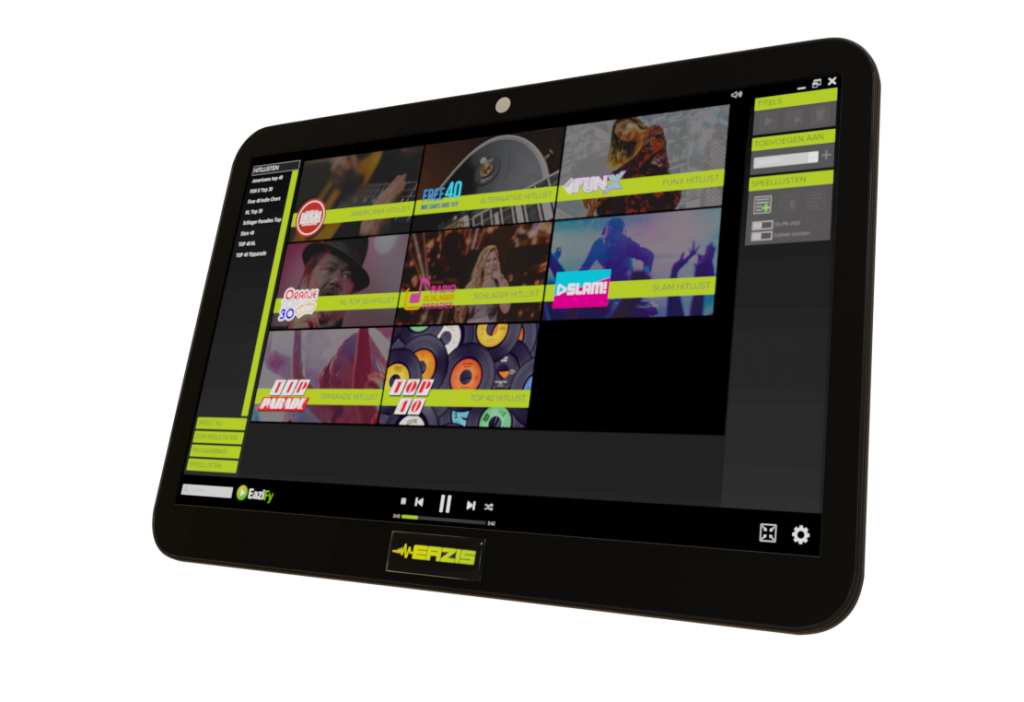
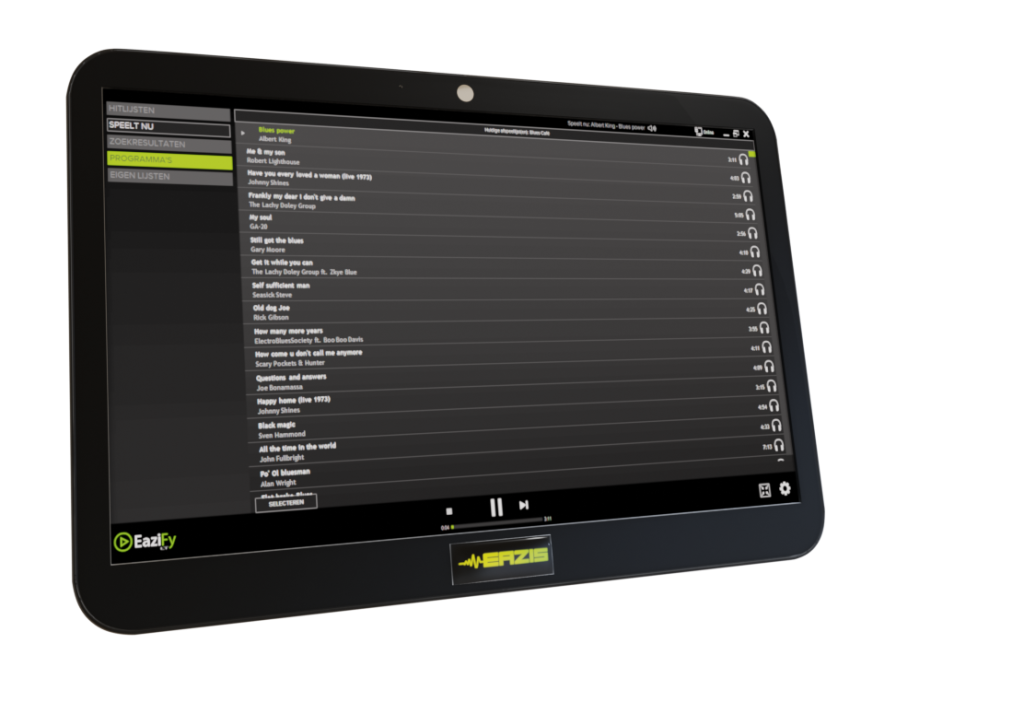
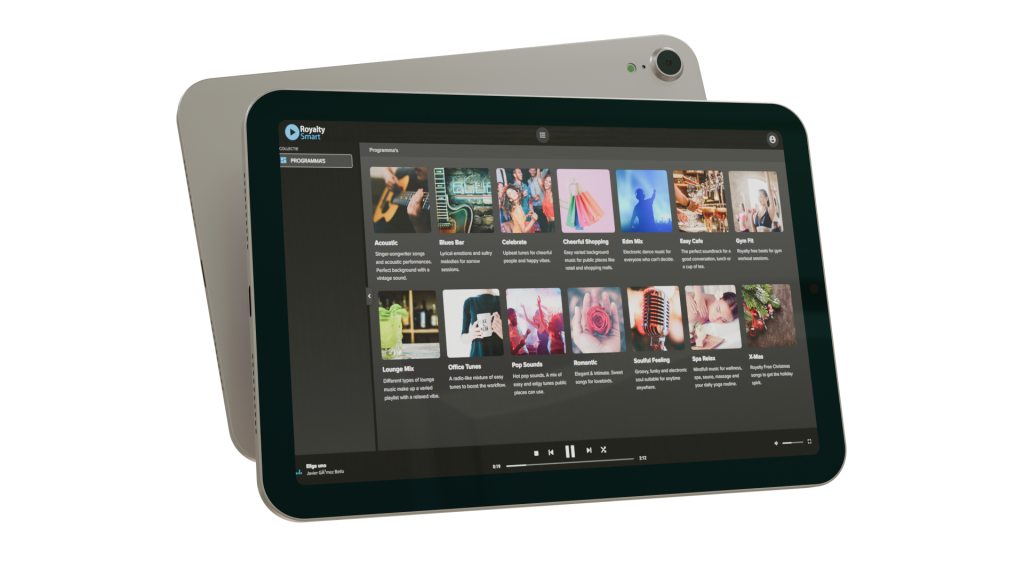
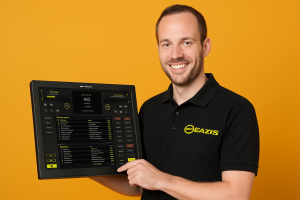
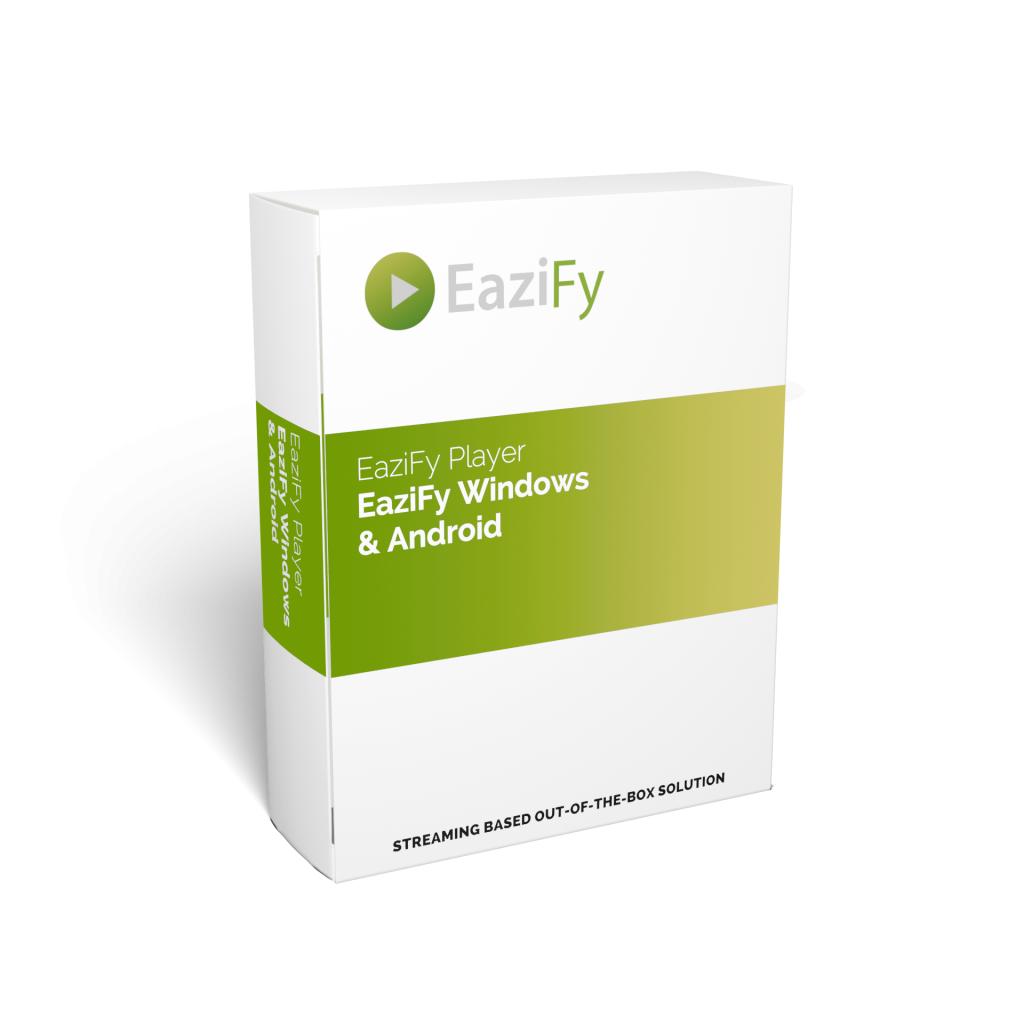
See below what you can do with our EaziFy software.
The ultimate streaming music player with easy operation and all the convenience of a large music database. Perfect for sports clubs, retail stores, or other locations where background music is a key element of the overall image.
Is a balanced collection of playlists sufficient as background music? We're happy to take the expertise off your hands and offer you the EaziFy Lite player. With a single click, music in your business.
Want to use EaziFy to provide multiple rooms with their own playlists? The Multiroom module gives you complete control over what's playing and where in your building.
For an elegant, user-friendly web solution, we also have a player with reduced rights music lists.
First check if a light comes on at the on/off button , if not, the system may be faulty
If a light is on, check whether a mouse pointer or circle appears when you touch the screen.
Is this not the case:
A power failure or a peak voltage on your mains voltage (socket/circuit) may cause the system's power supply and/or adapter disrupted .
Unplug the unit's AC adapter from the wall outlet and from the back of your music computer for 20 minutes
Once you have reconnected the system to the AC adapter and plugged the power cord back in, try booting the system again.
If the system still doesn't boot, please contact Eazis. The power supply and/or adapter are probably defective.
If a mouse arrow/circle does appear with movement or touch, restart the system by holding the power button for more than 5 seconds
If the Eazis software still does not appear after restarting, do the following:
Connect a USB keyboard (the one included in the system box). Then turn off your computer and CONTACT Eazis at +31 (0)546 538 911
NOTE! The hard drive may also be defective . This can likely be determined over the phone with an Eazis technician.
Perform a complete system reboot by holding the power button for more than 5 seconds
If the “touch” controls still do not work after that, shut down the system again and unplug the power adapter from the wall outlet.
Also unplug the adapter from the system. Wait 20 minutes for the entire circuit to fully discharge.
If the system still does not respond after booting, connect the mouse to a free USB port on the back or side and contact our technical service.
gjnfkdsgbfsdnjk ;dwsnubjo[ds
First check if a light comes on at the on/off button , if not, the system may be faulty
If a light is on, check whether a mouse pointer or circle appears when you touch the screen.
Is this not the case:
A power failure or a peak voltage on your mains voltage (socket/circuit) may cause the system's power supply and/or adapter disrupted .
Unplug the unit's AC adapter from the wall outlet and from the back of your music computer for 20 minutes
Once you have reconnected the system to the AC adapter and plugged the power cord back in, try booting the system again.
If the system still doesn't boot, please contact Eazis. The power supply and/or adapter are probably defective.
If a mouse arrow/circle does appear with movement or touch, restart the system by holding the power button for more than 5 seconds
If the Eazis software still does not appear after restarting, do the following:
Connect a USB keyboard (the one included in the system box). Then turn off your computer and CONTACT Eazis at +31 (0)546 538 911
NOTE! The hard drive may also be defective . This can likely be determined over the phone with an Eazis technician.
Perform a complete system reboot by holding the power button for more than 5 seconds
If the “touch” controls still do not work after that, shut down the system again and unplug the power adapter from the wall outlet.
Also unplug the adapter from the system. Wait 20 minutes for the entire circuit to fully discharge.
If the system still does not respond after booting, connect the mouse to a free USB port on the back or side and contact our technical service.
For the best experience on our website, we use cookies. With these, we analyze website traffic and optimize features. By clicking 'Accept', you agree to this.