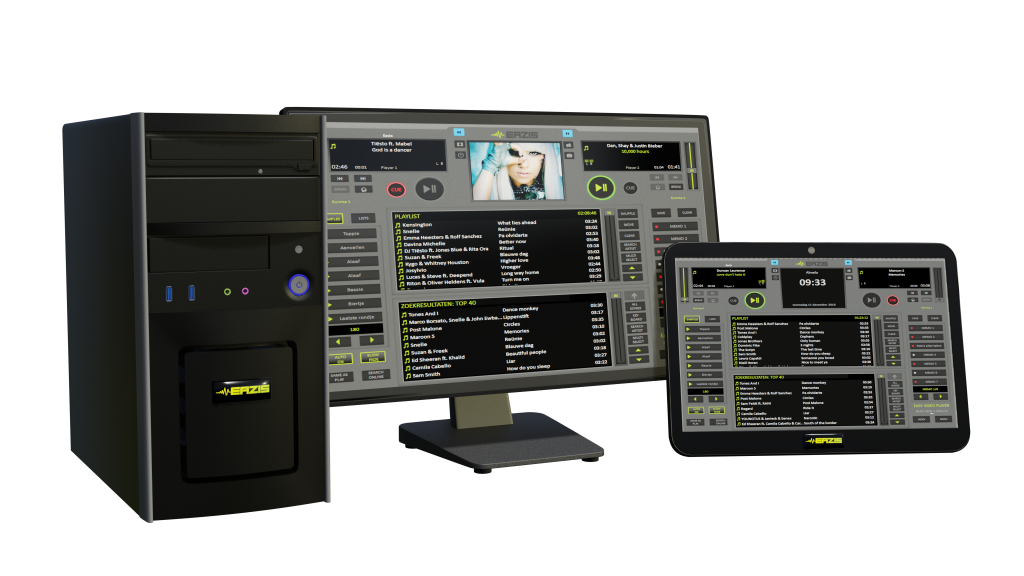
More and more businesses are turning to visual support again, because, just like music, images are a powerful tool that significantly enhances the experience. Want to show your guests the latest music videos, organize a karaoke night, or interact with your business? It's all possible with our Eazis video systems.
With an Eazis DJ karaoke, linked to a second screen, you have not only the extensive music package, but also a wide choice of Dutch and foreign karaoke songs.
From the past to the present, from rock to pop.
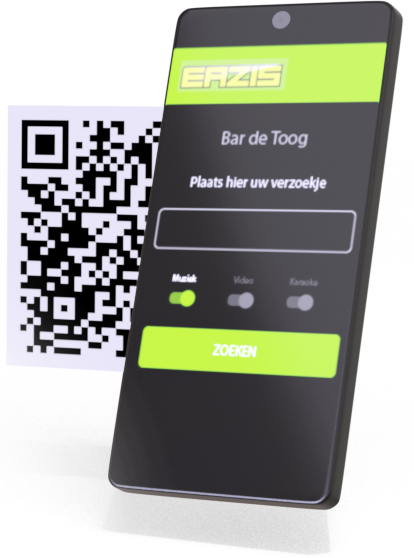
With the jukebox app, your customers can control the music they play. You can choose the genres and maintain control over the song requests.
For those quiet evenings at your company, Eazis introduces the pub quiz module. No more hassle with laptops, just a wealth of questions on various themes and levels, all with a suitable experience from the Eazis music system.
Eazis Media & Advertising is a module within our offering that allows businesses to display their own advertising and media indoors on a large screen. This is, of course, integrated with the Eazis music computers.
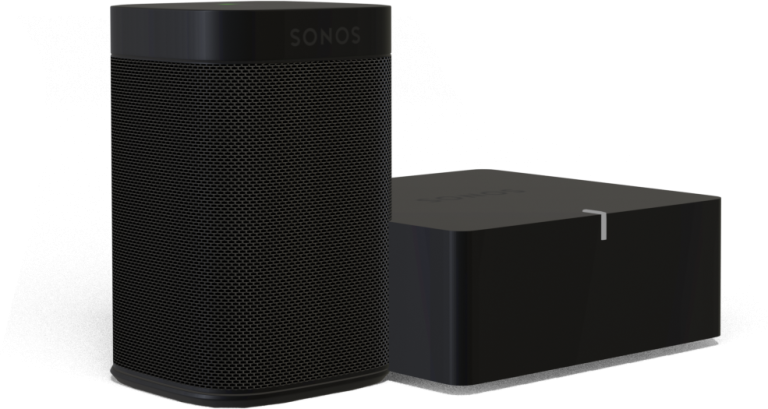
The Eazis player works perfectly with your Sonos system. Using a Sonos Port, for example, you can control your rooms yourself via the app.
Want to manage multiple rooms with their own playlists on a single music computer? With the Multiroom module, you have complete control over what's playing and where in your building.
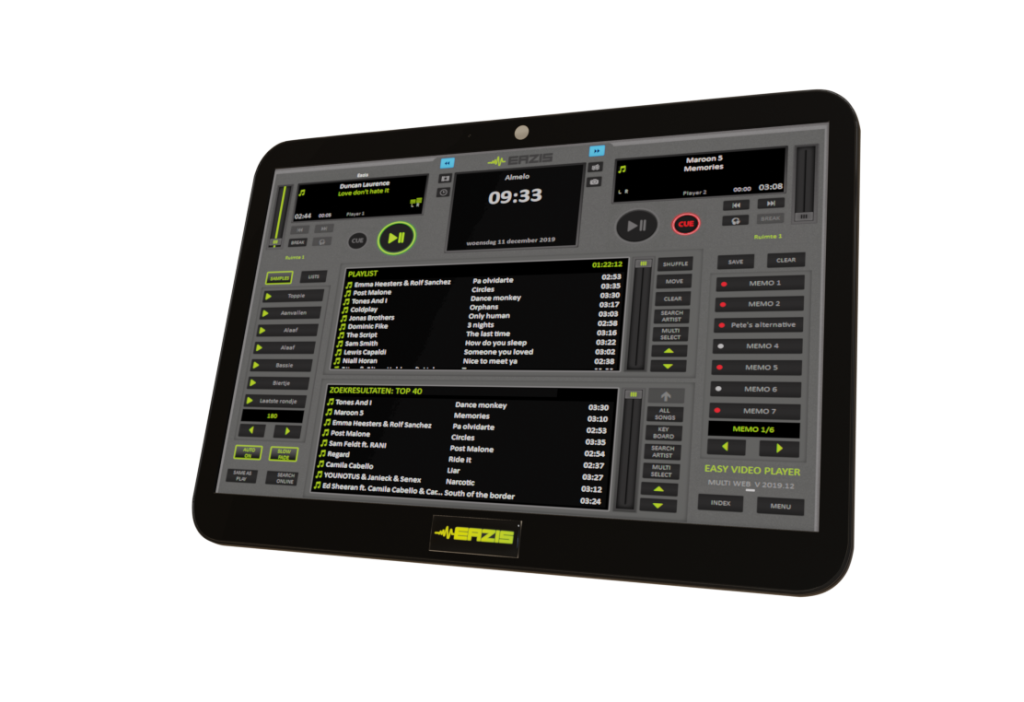
(Please note, hardware images may vary from current models.)
MOST CHOSEN
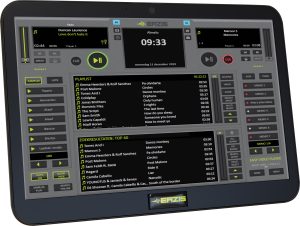
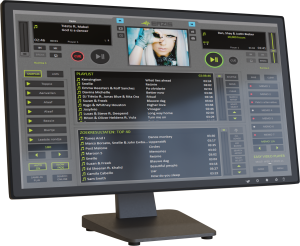
A perfect choice to play the Eazis DJ Player on.
This touchscreen PC can be placed anywhere or hung on a standard VESA 75 wall bracket.
With an included USB audio DAC and an internet connection, the system is easy to connect to your existing installation.
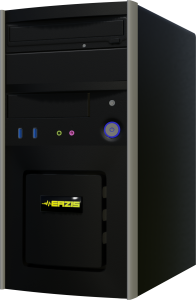
Would you prefer something a little more robust, or have you already installed a touchscreen/display on site?
Then a reliable system cabinet might be the right solution.
It often offers more technical possibilities to be able to combine other functionalities.
Need the convenience of a larger screen? This all-in-one PC is the muscle-bound version of the Etop.
This is a fantastic solution, especially if you want to work more intensively with video clips and media.
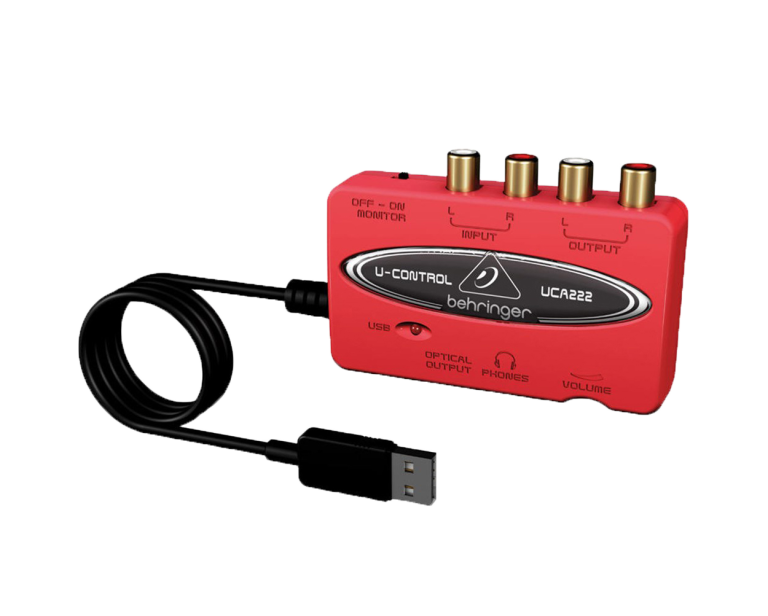
In addition to a reliable computer to play our software, we are also happy to supply the right DAC for the right situation.
Experience shows that a standard audio output on a computer/laptop, etc., is often a bit too limited. That's why we always have some "external" sound cards on hand to match your needs
Supported devices for Eazis DJ Player: Windows 10 or later
If your system deviates from this, please contact us
We will be happy to help you find a suitable solution.
Go to login.eazis.com:
In the Eazis DJ Player:
First check if a light comes on at the on/off button , if not, the system may be faulty
If a light is on, check whether a mouse pointer or circle appears when you touch the screen.
Is this not the case:
A power failure or a peak voltage on your mains voltage (socket/circuit) may cause the system's power supply and/or adapter disrupted .
Unplug the unit's AC adapter from the wall outlet and from the back of your music computer for 20 minutes
Once you have reconnected the system to the AC adapter and plugged the power cord back in, try booting the system again.
If the system still doesn't boot, please contact Eazis. The power supply and/or adapter are probably defective.
This means that Eazis DJ is playing in DEMO mode.
It is possible that there has been no internet connection for some time, which means that no update has been downloaded.
Check the computer's internet cable
If you have a Wi-Fi connection, please see the “Reset Wi-Fi connection” section for a more detailed explanation.
Once a connection is re-established, the Eazis software will update automatically . If you want certainty, you can also manually restart the system or select the “refresh software” option in the MENU > Options.
If the above steps did not provide a solution, please contact Eazis.
If a mouse arrow/circle does appear with movement or touch, restart the system by holding the power button for more than 5 seconds
If the Eazis software still does not appear after restarting, do the following:
Connect a USB keyboard (the one included in the system box). Then turn off your computer and CONTACT Eazis at +31 (0)546 538 911
NOTE! The hard drive may also be defective . This can likely be determined over the phone with an Eazis technician.
Perform a complete system reboot by holding the power button for more than 5 seconds
If the “touch” controls still do not work after that, shut down the system again and unplug the power adapter from the wall outlet.
Also unplug the adapter from the system. Wait 20 minutes for the entire circuit to fully discharge.
If the system still does not respond after booting, connect the mouse to a free USB port on the back or side and contact our technical service.
First, check any CD players or radio tuners you have. If these devices also don't output any sound, the problem likely lies with the music computer.
If you have a USB sound card (black/gray or red box with a USB cable connected to the system), check if a light is on. If not, check that the USB cable to the music computer is properly connected.
Check the audio settings in Eazis. Go to MENU – OPTIONS and then to AUDIO.
Select the correct sound card behind the outputs player 1/2 (or multiple options in the case of multiroom) (usually an indicator/option with “ USB ” in the name).
If a sound card cannot be selected in Eazis DJ, check the USB cable. If necessary, unplug it from the system and plug it into a different USB port. restart the system and repeat the steps described above.
In this case, no audio card was found by the system.
The software's audio settings may also be incorrect. You can check or change these settings by MENU – OPTIONS and then AUDIO . This will take you to the screen where you can assign any installed sound cards to the different players. PLAYER 1 is the left player on the main screen. PLAYER 2 is the right player.
In the case of a Multiroom system, you can use PLAYER 3 and PLAYER 4 to control the left and right players of a second room.
Check if a sound card is selected. If not, check via the “expand” menu behind the players whether a sound card selected .
If a sound card cannot be selected, but a USB sound card is present, try unplugging the USB cable from the system and plugging it into a different USB port on the computer. restart the system and repeat the steps described above.
If the above steps did not provide a solution, please contact Eazis.
The Eazis software cannot correctly verify the validity of the license on the server
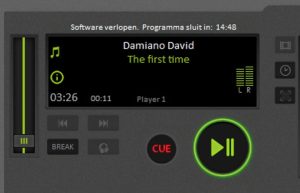
This may cause a message to appear above the player stating that the software has expired.
The program will then close after 15 minutes (demo mode)
This could have three causes:
Date/Time is not correct (VClock)

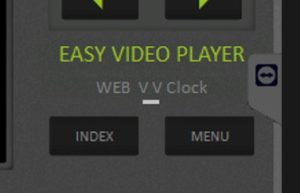
In that case, Web V Clock will appear instead of a version number above the Index/Menu buttons.
Set the date and time correctly via MENU > Options > button: adjust date/time
Software is not updated to the latest version
There might be something wrong with your internet connection, and the software needs to be updated.
Check that the internet cable from your computer to your internet router is properly connected.
If a Wi-Fi connection is used, please refer to the “Reset Wi-Fi connection” section for a more detailed explanation.
Once the internet cable is plugged in or the Wi-Fi connection has been established, you can check this via our software by pressing
MENU – OPTIONS – NETWORK and then CHECK ALL CONNECTIONS .
When three green check marks appear on the left underCONNECTION INFORMATION, everything is fine,
After the internet connection has been restored, you can update the software via MENU – OPTIONS – SOFTWARE REFRESH . Restart the system afterwards as a precaution. If the above steps have not provided a solution, please contact Eazis.
First check if a light comes on at the on/off button , if not, the system may be faulty
If a light is on, check whether a mouse pointer or circle appears when you touch the screen.
Is this not the case:
A power failure or a peak voltage on your mains voltage (socket/circuit) may cause the system's power supply and/or adapter disrupted .
Unplug the unit's AC adapter from the wall outlet and from the back of your music computer for 20 minutes
Once you have reconnected the system to the AC adapter and plugged the power cord back in, try booting the system again.
If the system still doesn't boot, please contact Eazis. The power supply and/or adapter are probably defective.
This means that Eazis DJ is playing in DEMO mode.
It is possible that there has been no internet connection for some time, which means that no update has been downloaded.
Check the computer's internet cable
If you have a Wi-Fi connection, please see the “Reset Wi-Fi connection” section for a more detailed explanation.
Once a connection is re-established, the Eazis software will update automatically . If you want certainty, you can also manually restart the system or select the “refresh software” option in the MENU > Options.
If the above steps did not provide a solution, please contact Eazis.

If a mouse arrow/circle does appear with movement or touch, restart the system by holding the power button for more than 5 seconds
If the Eazis software still does not appear after restarting, do the following:
Connect a USB keyboard (the one included in the system box). Then turn off your computer and CONTACT Eazis at +31 (0)546 538 911
NOTE! The hard drive may also be defective . This can likely be determined over the phone with an Eazis technician.
Perform a complete system reboot by holding the power button for more than 5 seconds
If the “touch” controls still do not work after that, shut down the system again and unplug the power adapter from the wall outlet.
Also unplug the adapter from the system. Wait 20 minutes for the entire circuit to fully discharge.
If the system still does not respond after booting, connect the mouse to a free USB port on the back or side and contact our technical service.
This message may also appear if the date and time are not set correctly.
Press the MENU – OPTIONS and then ADJUST DATE/TIME to correct this and restart the system.
If your internet connection is working and the system still asks for an UNLOCKCODE , your subscription may be blocked . Contact Eazis .
If you call after office hours, you will receive an UNLOCKCODE from the switchboard . Enter this code in the software and contact the Eazis administration department on the next business day
NOTE! The technician on duty outside office hours is NOT authorized to provide UNLOCK CODES!
If the software asks for an UNLOCKCODE , the license has expired.
Check if the version number matches the current one: 2026.7
If the version number is lower (or version xxx) than the indicated version, no update has occurred. This is almost always due to an internet connection problem
Check this by going to MENU – OPTIONS – NETWORK and pressing CHECK ALL CONNECTIONS
If four green check marks appear under CONNECTION INFO , your connection is OK; if red crosses appear, your connection is not OK.
In that case, you should contact your own provider/network administrator.
If there is NO version number (version xxx) or V-Clock, the Date/Time has been set incorrectly. To resolve this, go to Eazis DJ and ask for a V-Clock Code.
NOTE! The technician on duty outside office hours is NOT authorized to provide UNLOCK CODES!
Once the Wi-Fi connection has been established, you can check this via our software by MENU – OPTIONS – NETWORK and then ALL CONNECTIONS .
If 3 green check marks appear on the left under CONNECTION INFO , everything is working correctly; if red crosses appear, there is still something wrong with your connection.
It is also possible that your internet router needs a restart . You can force this by unplugging your router's adapter from the power outlet for approximately 15 to 30 seconds.
PLEASE NOTE! After plugging it back in, it often takes several minutes for the connection to be fully re-established, so wait at least 5 minutes before attempting anything.
If you're still experiencing an incorrect connection to our Eazis service, your network may be trying to block certain internet traffic (firewall and/or proxy settings). In that case, please contact your provider/network administrator.
Click on MENU and then on OPTIONS -> NETWORK -> WIFI CONNECTIONS
On the next screen, select the desired Wi-Fi network and enter your Wi-Fi password.
If you're using a touchscreen, you can use the on-screen keyboard.
This should appear automatically; otherwise, press the ABC button next to the input field.
It's also possible that this on-screen keyboard will end up over the input field.
In that case, drag the keyboard out of the way by pressing and dragging the top edge of the keyboard field.
Once the password is entered, press CONNECT and wait for the connection to be established.
If it is successful, press EXIT to exit the screen.
For the best experience on our website, we use cookies. With these, we analyze website traffic and optimize features. By clicking 'Accept', you agree to this.